Nothing disrupts your day like iPhone 17 cellular problems—sudden “No Service,” dropped calls, or weak 5G signals despite full bars. These issues hit many new iPhone 17 owners after iOS 26 updates or eSIM transfers, often from carrier glitches, software bugs, or settings mishaps. Don’t worry; this guide will help you to fix iPhone 17 cellular problems.
Methods to fix iPhone 17 cellular problems and solutions
iPhone 17 cellular problems often show as intermittent 5G drops to “SOS,” failed data, or calls cutting after 1-2 minutes. Users report eSIM transfer bugs from older iPhones causing no recognition, even after diagnostics pass.
Wi-Fi calling fails too, and it worsens at work or during long calls. Carriers like Verizon, AT&T, and T-Mobile blame Apple; Apple points to them—but user fixes like eSIM resets work.
Basic Troubleshooting Steps
Start simple—these resolve 70% of cases.
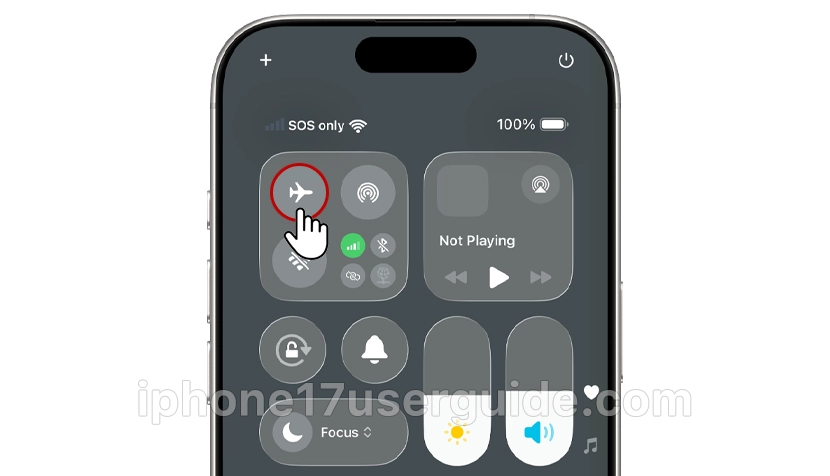
- Toggle Airplane Mode: Swipe down Control Center, and tap the airplane icon for 30 seconds, then off. Forces reconnect.
- Restart iPhone: Hold the volume and side buttons until the slider appears; power off, wait 30s, and restart. Clears temp glitches.
- Check Signal Strength: Move to an open area; toggle Cellular Data in Settings > Cellular.
- Update Carrier Settings: Settings > General > About—install if prompted.

Test calls/data after each.
Reset Network Settings
If basics fail, a reset wipes Wi-Fi passwords but fixes deep bugs.

- Go to Settings > General > Transfer or Reset iPhone > Reset > Reset Network Settings.
- Enter passcode; phone restarts.
- Rejoin Wi-Fi, test cellular.
Users fixed drops by switching from 5G to LTE here too: Settings > Cellular > Cellular Data Options > Voice & Data > LTE.
Fix eSIM and SIM Issues
eSIM transfers from iPhone 15/16 often glitch on iPhone 17.
- Delete & Reinstall eSIM: Settings > Cellular > tap line > Remove Cellular Plan. Visit a carrier store for a fresh QR code scan. (T-Mobile/Verizon users swear by this.)
- Physical SIM: Eject tray (SIM ejector), clean, and reinsert. For no recognition, swap the tray open/close.
- Reset SIM via Carrier: Call provider (e.g., Verizon tech reset).
Physical SIM users note daily drops fixed by tray reseat.
Advanced Fixes for Persistent Problems
| Issue | Step-by-Step Fix | Why It Works |
|---|---|---|
| Dropped Calls | Settings > Cellular > Cellular Data Options > Disable Low Data Mode; turn off Private Relay (iCloud+). | Clears relay interference speeding tests 2x. |
| No Data Post-Update | Update iOS: Settings > General > Software Update (e.g., 26.0.1 fixed some). Reset APN if international (e.g., Starhub “giga”). | Patches iOS 26 bugs. |
| SOS Only | Settings > Cellular > Add eSIM/Cellular Plan; contact carrier for VoLTE enable. | Activates advanced networks. |
Run diagnostics first: Apple Store or Support app > run remotely.
When to Contact Support
If fixes fail after eSIM reset:
- Apple Support (chat/remote diag) or Genius Bar – insist on logic board check if drops persist.
- Carrier store for SIM refresh.
- Trade-in return if less than 14 days.
Avoid paid replacements; document with screenshots.
FAQ:
Why is my iPhone 17 showing “No Service” or “SOS”?
Answer: This often stems from eSIM transfer glitches, iOS 26 bugs, or carrier mismatches; toggle Airplane Mode or reset network settings first.
How do I fix dropped calls on iPhone 17?
Answer: Disable Low Data Mode and Private Relay in Settings > Cellular; reseat the SIM tray or switch to LTE for stability.
What if basic restarts don’t solve iPhone 17 cellular data issues?
Answer: Delete and reinstall eSIM via carrier QR code, update iOS/carrier settings, or reset network settings for persistent problems.
iPhone 17 cellular problems suck but are fixable—start with the Airplane toggle and escalate to eSIM delete/reinstall for 90% success. Regular iOS/carrier updates prevent recurrences. Your iPhone 17 should shine with solid 5G soon; test in varied spots post-fix. Share your results below.
2 thoughts on “The Ultimate Guide to Resolving iPhone 17 Cellular Problems”