If your shiny new iPhone 17 is acting up with spotty Wi-Fi, cellular data that won’t connect, no internet connection, or Bluetooth devices that keep dropping, you’re not alone. Resetting network settings on iPhone 17 can fix this issue without wiping your photos or apps. This guide walks you through every step, troubleshooting tips to reset network settings on your iPhone 17 series.
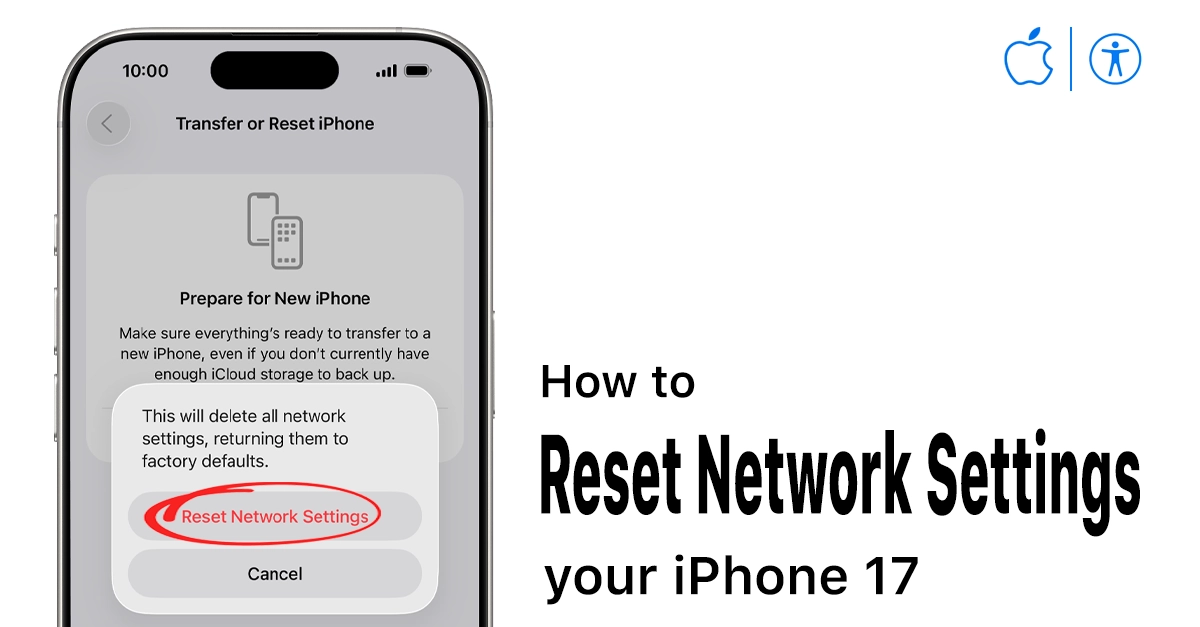
Why Reset Network Settings on iPhone 17? Common Issues It Solves
Resetting network settings on iPhone 17 targets glitches in Wi-Fi, cellular, VPN, and Bluetooth configs that basic restarts can’t touch. It’s like hitting refresh on your phone’s internet brain, super effective for iPhone 17’s advanced 5G/6G antennas and Wi-Fi 7 support.
- Wi-Fi woes: Constant disconnects, slow speeds, or “No Internet Connection” errors even on strong signals. iPhone 17 users report this post-iOS 26 update.
- Cellular data fails: 5G/LTE drops, “SOS” mode in coverage areas, or data refusing to load apps. Carrier mismatches or APN glitches trigger this.
- Bluetooth bugs: AirPods or car kits won’t pair reliably, audio stutters, or devices vanish from lists.
This reset has fixed issues for thousands; it’s Apple’s go-to before full restores. Backup first, though no data loss, but networks vanish!
Step-by-Step: How to Reset Network Settings on iPhone 17 (iOS 26)
Ready to fix it? Follow these exact steps on your iPhone 17, 17 Pro, or Pro Max—screenshots aren’t here, but it’s dead simple. Takes under 2 minutes.
- Open Settings: Swipe down from the top-right (Control Center style) or tap the gear icon on the Home Screen.
- Go to General: Scroll or search “General” and tap it.
- Transfer or Reset iPhone: Scroll to bottom and tap “Transfer or Reset iPhone.”
- Hit Reset: Tap “Reset” at the bottom. (Don’t pick Erase All—that’s nuclear!)

- Select Reset Network Settings: Choose it from the list. Enter your passcode (Face ID skips this sometimes).
- Confirm: Tap “Reset Network Settings” again. A warning pops up—acknowledge and wait.
- Restart & Reconnect: iPhone reboots (1-2 mins). Wi-Fi is off by default—turn it on and rejoin networks.

Done! Test Wi-Fi (speedtest.net), cellular (data toggle), and Bluetooth (pair AirPods). 90% of iPhone 17 owners see instant fixes.
What Happens When You Reset Network Settings on iPhone 17?
Curious about the aftermath? Resetting network settings on iPhone 17 wipes only network-related stuff to factory defaults; your apps, photos, and accounts stay safe. Here’s the full breakdown:
- All saved Wi-Fi networks and passwords get deleted. You’ll rejoin home/office hotspots manually.
- Cellular APN/carrier settings revert to defaults. Re-check with your provider if customized.
- Bluetooth pairings (AirPods, watches, speakers) unpair completely—re-pair post-reset.
- VPN, proxy, and private Wi-Fi configs? Gone. Re-add via Settings > General > VPN.
- No impact on iCloud, photos, apps, or passcode. The phone restarts in ~1-2 minutes.
Pro tip: Jot down Wi-Fi passwords or use your Mac’s Keychain for quick recovery. iPhone 17 restarts faster than older models thanks to the A19 chip.
Troubleshooting Before You Reset: Quick Wins for iPhone 17 Network Glitches
Don’t jump straight to reset—try these first for 70% of cases. Tailored for iPhone 17’s quirks like Wi-Fi Assist and Private Relay.
Wi-Fi Fixes
- Toggle Airplane Mode: On 10 secs > off. Clears temp glitches.
- Forget Network: Settings > Wi-Fi > tap (i) > Forget This Network > rejoin.

- Disable Wi-Fi Assist: Settings > Cellular > scroll to bottom > off. Stops auto-switching.
Cellular Data Hacks
- Update Carrier Settings: Settings > General > About—pops if available.
- Reset via Toggle: Settings > Cellular > Toggle Data off/on.
- Check Coverage: Dial 3001#12345# for field test mode.
Bluetooth Refresh
- Forget Device: Settings > Bluetooth > (i) > Forget > re-pair.
- Restart Peripherals: Power cycle AirPods case, etc.
If these flop, reset is your hero. iOS 26.1 beta fixed many iPhone 17 bugs—check Settings > General > Software Update.
iPhone 17-Specific Network Issues & Advanced Fixes (2025 Edition)
iPhone 17’s beastly modem shines but has teething pains. Here’s the scoop:
- iOS 26 Connectivity Curse: Weak signals, drops on AT&T/Verizon/T-Mobile. Resetting and updating to 26.1 resolves most.
- Wi-Fi 7 Struggles: New routers? Ensure compatibility; reset clears band mismatches.
- 5G/6G Hiccups: Toggle “Maximize 5G Data” off in Settings > Cellular.
- Private Wi-Fi Address: Disable per network (Wi-Fi > (i)> off) for picky hotspots.
- Advanced: Use AceTools (free app) for diagnostics pre-reset. Or DFU restore as a last resort (connects to Mac/PC).
After Reset: Re-Setup Guide for iPhone 17 Perfection
Post-reset, rebuild smartly to dodge repeats:
- Wi-Fi Priority: Join the strongest first; enable Auto-Join. Save passwords in iCloud Keychain.
- Carrier Update: Settings > General > About – install if prompted.
- Bluetooth Best Practices: Pair in quiet spots; update firmware via Watch/Settings.
- VPN Re-Add: Settings > General > VPN & Device Management. Test one by one.
- Battery/Network Balance: Low Power Mode auto-toggles; tweak Low Data Mode off.
When Reset Isn’t Enough: Next-Level iPhone 17 Repairs
Still busted? Escalate:
- Software Update: iOS 26.1+ patches iPhone 17 nets.
- Full Restart: Volume Up > Down > Hold Side.
- Factory Reset (Last Resort): Backs up first! Erases everything.
- Hardware Check: Genius Bar for antenna faults (rare but reported).
- Carrier SIM Swap: New SIM/eSIM fixes provisioning bugs.
FAQs & Pro Tips for iPhone 17 Owners
- Does reset delete apps? Nope, just networks.
- Safe for warranty? Totally Apple recommends it.
- Frequency? Once a month max; overuse is unnecessary.
Bonus: Enable “Optimize Battery Charging” to indirectly boost signal stability.
Resetting network settings on iPhone 17 is your fast track to ditching Wi-Fi woes, cellular drops, and Bluetooth blues—simple, safe, and stupidly effective. Follow the steps, prep your passwords, and enjoy buttery connections on your iPhone 17. If issues linger, update iOS or hit Apple Support. Your phone’s back to peak performance. Happy connecting!
8 thoughts on “How to Reset Network Settings on iPhone 17: Fix Wi-Fi, Cellular & Bluetooth Issues Fast”