Back Tap on iPhone 17 lets you double or triple tap the back of your device to launch apps, take screenshots, or run shortcuts without fumbling for buttons. This iOS accessibility gem, available since iOS 14, works seamlessly on the iPhone 17 series running iOS 26. New iPhone 17 owners love it for speeding up daily tasks, from quick camera access to custom automations. Ready to unlock it? Follow this friendly, step-by-step guide special for you.
What Is Back Tap, and Why Use It on iPhone 17?
Back Tap detects precise taps on your iPhone 17’s back using advanced motion sensors, triggering actions instantly. It’s perfect for iPhone 17 users who juggle photos, notifications, and apps all day.
- Double Tap: Ideal for frequent actions like opening Control Center or the camera.
- Triple Tap: Great for deeper tasks, such as running Siri Shortcuts or accessibility tools.
On the sleek iPhone 17, with its improved haptics, taps feel responsive and accurate. No more screen swipes save time and reduce wear on your shiny new device. iPhone 17 Pro models even pair it with ProMotion for smoother interactions.
Step-by-Step: How to Set Up Back Tap on iPhone 17
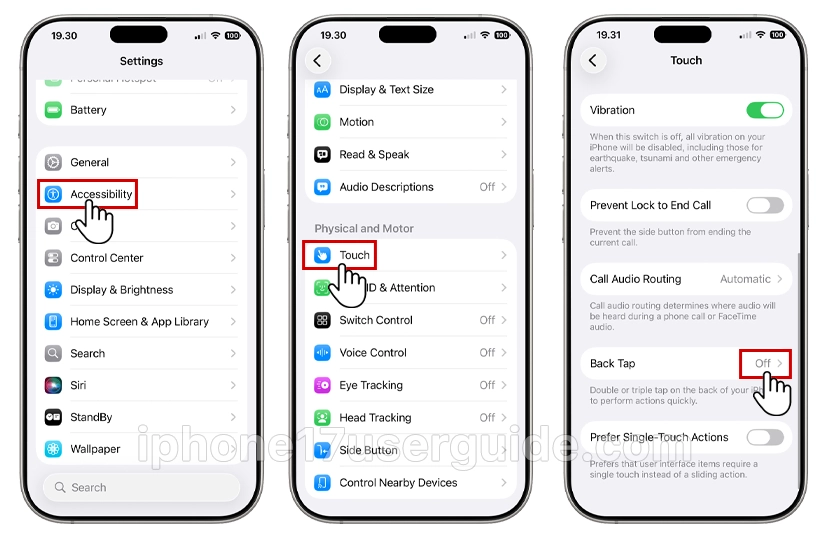
Setting up Back Tap takes under a minute. Your iPhone 17 must run the latest iOS—check in Settings > General > Software Update. Here’s the easy path:
- Open the Settings app (gray gear icon on your home screen).
- Scroll to Accessibility and tap it.
- Tap Touch in the Physical and Motor section.
- Scroll down and select Back Tap.
Now pick your action:
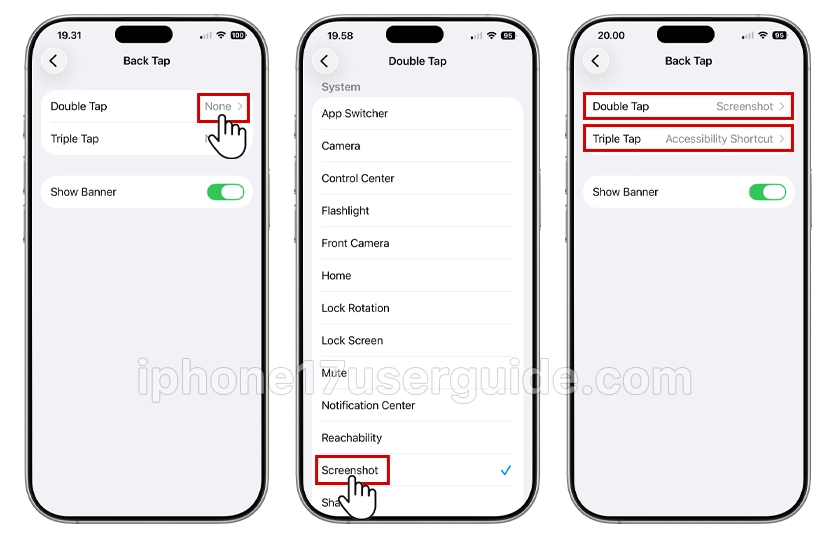
- Tap Double Tap or Triple Tap.
- Choose from the list: Screenshot, Lock Screen, App Switcher, Camera, Control Center, Torch, or more.
- For power users, select Shortcuts to link custom automations.
Test it: Double or triple tap your iPhone 17’s back (avoid cases that muffle sensors). Feel the haptic buzz? It’s live!
Troubleshooting Setup Issues
If taps don’t register:
- Remove thick cases—opt for slim ones like those for iPhone 17 MagSafe.
- Restart your iPhone 17: Hold the volume and side buttons, and slide to power off.
- Ensure no screen protector interferes (rare, but check).
Advanced Back Tap Tricks with Shortcuts on iPhone 17
Level up with the Shortcuts app (pre-installed on iPhone 17). Create custom taps that wow:
- Open the Shortcuts app.
- Tap + to create a new shortcut.
- Add actions: Text home automation, log workouts, or scan QR codes.
- Name it (e.g., “Morning Routine”) and add it to Back Tap via Settings.
Examples for iPhone 17:
- Fitness Tap: Triple Tap starts an Apple Fitness+ workout.
- Productivity Boost: Double Tap opens Notes and sets Do Not Disturb.
- Social Share: Tap to copy your iPhone 17 photo to the clipboard.
iOS 26 adds six new actions like Reachability or Magnifier—explore in the Back Tap menu. Test on your iPhone 17 Air for slim-profile precision.
Pairing with iPhone 17 Accessibility Features
Back Tap shines for accessibility:
- Trigger AssistiveTouch for buttonless navigation.
- Launch VoiceOver or Magnifier for low-vision users.
- Set as Accessibility Shortcut (triple-click side button alternative).
- Seniors or beginners on iPhone 17: Assign Triple Tap to call family. One-tap emergency help!
Common Back Tap Problems and Fixes for iPhone 17
Taps misfiring? Here’s the fix list:
- False Triggers: Adjust sensitivity in Back Tap—set to “Firm” for iPhone 17 Pro.
- No Response: Update iOS and reset Accessibility settings (Settings > Accessibility > Reset).
- Case Interference: Testing the naked iPhone 17’s glass back needs direct contact.
- Battery Drain: Minimal, but monitor in Settings > Battery.
Reddit users note it works best on iPhone 17 vs. older models due to the better Taptic Engine.
Back Tap in iPhone 17 Ecosystem: HomeKit, Watch, and More
Integrate deeper:
- Apple Watch: Sync shortcuts for cross-device magic.
- HomeKit: Tap to turn on smart lights via the iPhone 17 Home app.
- AirPods: Assign Tap to toggle noise cancellation.
Future iOS updates may add AR taps—stay tuned for iPhone 17 supremacy.
Conclusion
Mastering Back Tap on your iPhone 17 transforms taps into superpowers, faster screenshots, smart shortcuts, and effortless control. From setup to advanced tricks, this guide equips you for peak productivity. Experiment today and make your iPhone 17 work smarter. Questions? Drop a comment below.