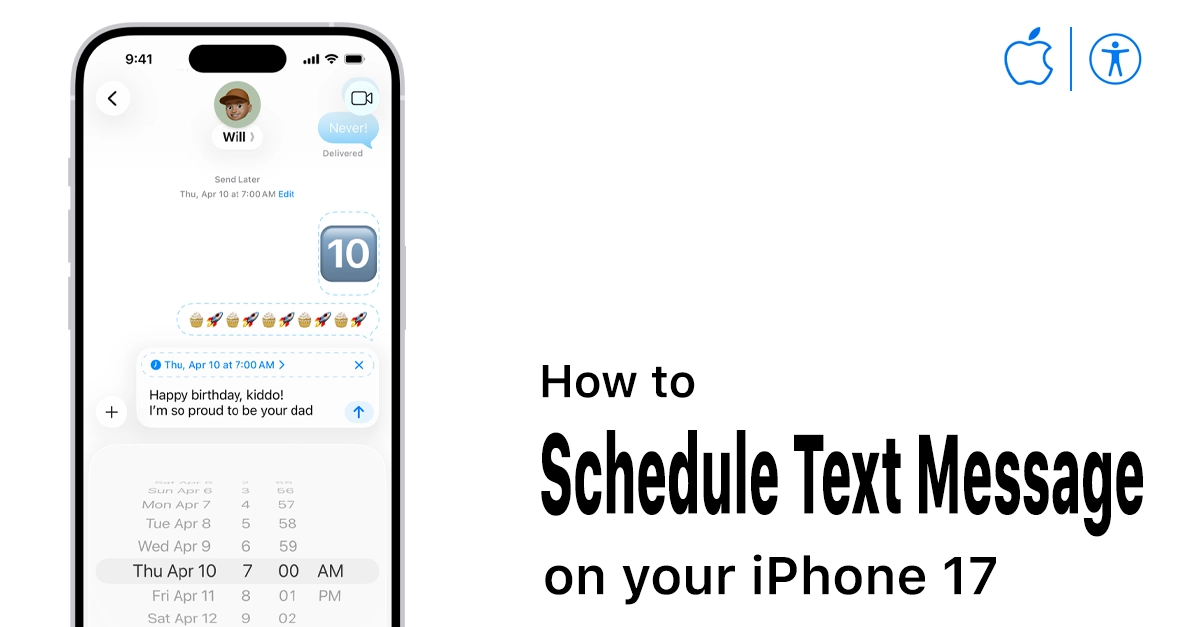
The iPhone 17 series on iOS 26 lets you schedule text messages directly in the Messages app using the new Send Later feature. It eliminates the need for shortcuts or third‑party apps, letting you set messages to send at any date and time. In this guide, you will learn how to schedule text message on iPhone 17 step by step, along with tips, limits, and fixes if the option does not appear.
Before scheduling messages, make sure your device and settings support the Send Later feature.
- Confirm your iPhone 17 is updated to iOS 26 by going to Settings > General > Software Update.
- Ensure Messages is activated with your phone number or Apple Account under Settings > Messages.
- Turn on iMessage if you want to schedule blue-bubble iMessages instead of regular SMS.
If your software is out of date or Messages is not fully set up, the Send Later option may not appear in conversations.
How to schedule text message on iPhone 17 to Send Later
The Send Later feature lets you schedule a text as you compose it in Messages. Follow these steps on your iPhone 17:
- Open the Messages app from your Home Screen or App Library.
- Start a new conversation with the Compose button or open an existing chat.
- Type your message as normal in the text field.
- Tap the Plus (+) button and choose Send Later.
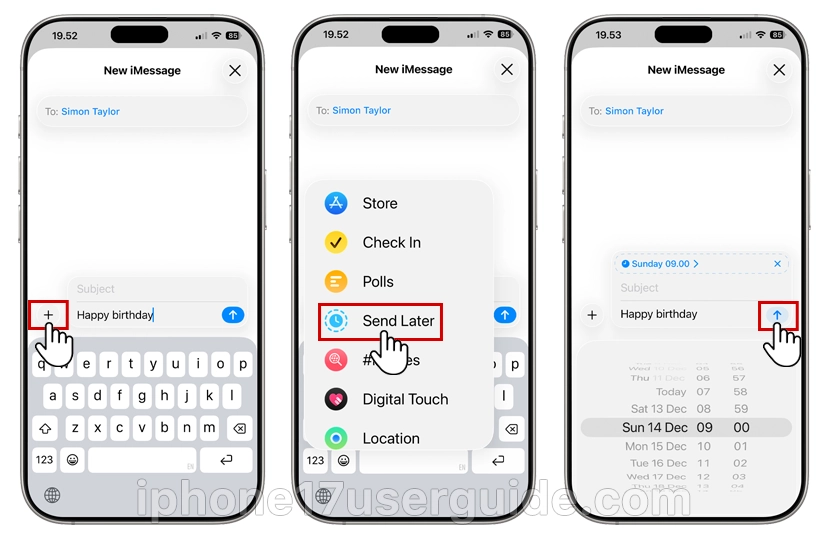
- Choose a suggested time (for example, “Send later Tomorrow”) or tap Pick Date & Time for full control.
- Select the exact date and time you want the text to send, then confirm.
- The border of the text field turns into a dashed line, and the time your message will be sent appears at the top of the message, indicating it is scheduled.
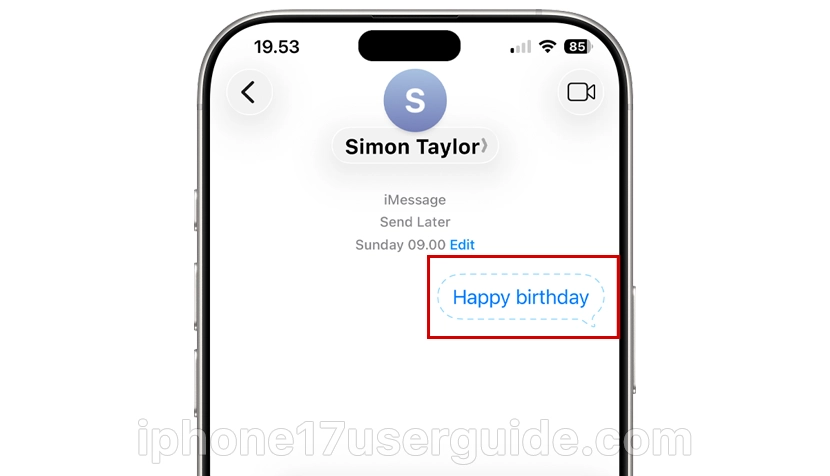
Your iPhone 17 will automatically send the message at the chosen time as long as the device has at least some form of network connectivity.
Note: Send Later is only available when sending to other users who have iMessage turned on.
View, edit, or cancel scheduled messages
After you schedule a text message on iPhone 17, you can still change your mind before it sends.
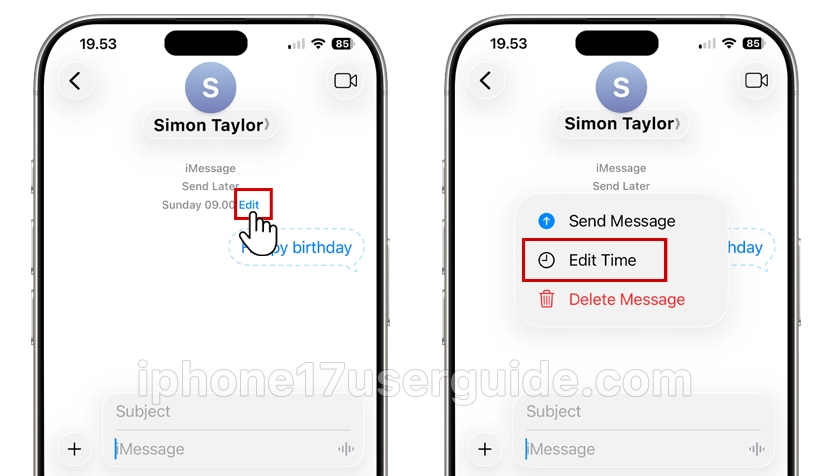
- To edit it, tap Edit, then choose Edit Time.
- To cancel, tap Edit and select Delete Message the scheduled time.
If you delete a scheduled message, it will not be delivered, and the clock icon will disappear from the conversation.
Limits and important details to know
Scheduling messages on iPhone 17 is powerful, but there are some limits and conditions.
- Send Later works with Messages conversations, and behavior may differ slightly between iMessage and SMS depending on your carrier.
- Your iPhone should be turned on around the scheduled time; if the device is fully offline, sending may be delayed until it reconnects.
- Time zones matter: if you travel, the phone uses the local time zone set in Settings > General > Date & Time for future scheduled sends.
Understanding these details helps avoid confusion if a message is sent a little later than expected or appears at a different time after a time zone change.
Troubleshooting: Send Later not showing on iPhone 17
Sometimes the Send Later menu does not appear even on recent devices, and a few checks usually fix the issue.
- Confirm your iPhone 17 is running a version of iOS 26 that supports scheduled messages and install any pending updates.
- If the option only fails in some chats, try deleting the thread and starting a fresh conversation with that contact.
- Restart your iPhone 17 if the Messages app seems unresponsive or features are missing.
If none of these steps work, check the official Apple Support page for “Schedule a text message on iPhone to send later” for any region-specific notes or known issues.
When to schedule text message on your iPhone 17
Using Send Later on iPhone 17 is useful in both personal and professional situations.
- Schedule birthday or holiday wishes so you never miss an important date.
- Plan follow-up messages for clients, colleagues, or family at times they are most likely to read and respond.
- Set reminders to yourself via Messages if you prefer seeing alerts in your chat list.
Using these patterns regularly helps position your iPhone 17 as a proactive planning tool instead of just a reactive messaging device.
Conclusion
The Send Later feature in iOS 26 lets you easily schedule texts message on iPhone 17 directly in the Messages app. With just a few taps, you can set a time, review or edit messages, and stay organized with birthdays, follow-ups, and reminders. It’s a simple way to make your daily messaging more reliable and convenient.