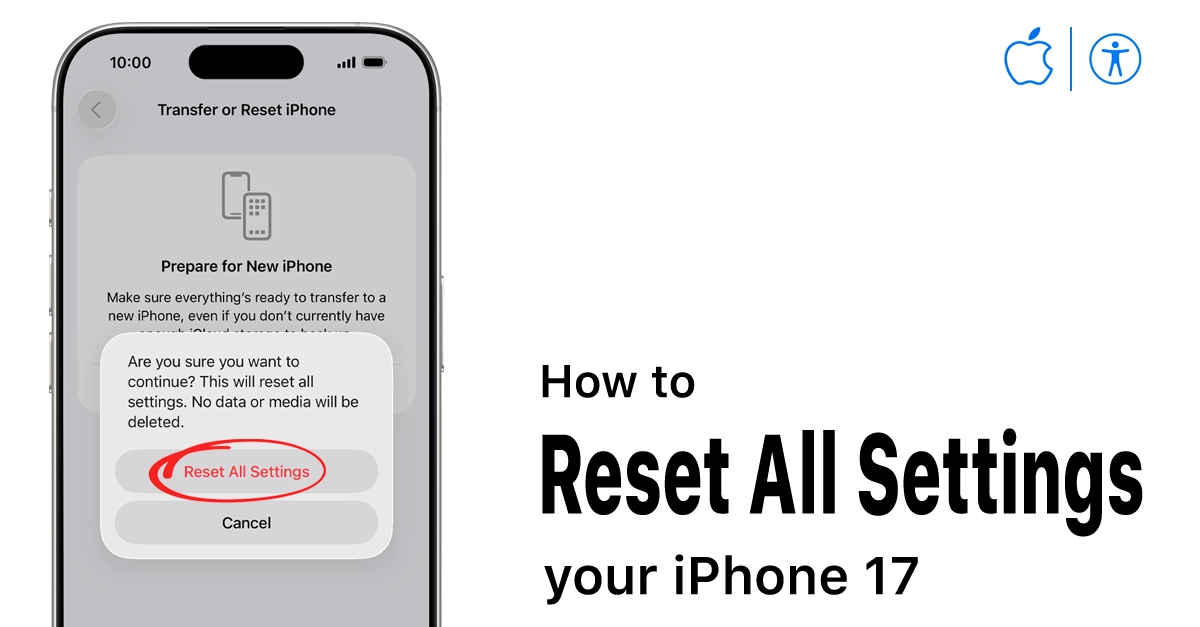
Resetting all settings on your iPhone 17 can resolve various issues without deleting your data. This comprehensive guide explains why and how to reset all settings on your iPhone 17 safely, with professional tips tailored for iPhone 17 owners. Whether you’re troubleshooting or looking to refresh your device settings, this article covers everything you need to know.
Why Reset All Settings on iPhone 17?
Resetting all settings your iPhone 17 restores system settings to their defaults without erasing your personal data, such as photos, apps, and messages.
This can resolve network connectivity problems, battery drain, or erratic device behavior caused by misconfigured settings.
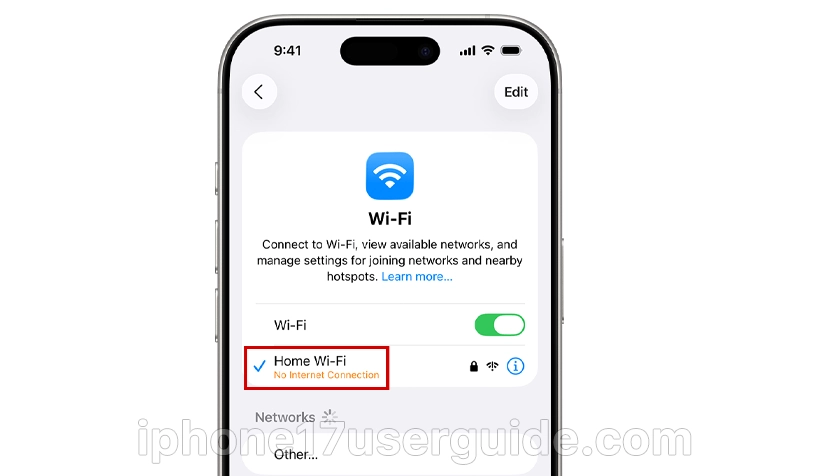
It’s a less invasive step compared to a full factory reset, ideal for users wanting to troubleshoot while maintaining their content integrity.
What Does Resetting All Settings Do on iPhone 17?
When you reset all settings on the iPhone 17, the device erases preferences such as Wi-Fi networks, VPN configurations, Bluetooth pairings, display and sound settings, keyboard dictionaries, Home Screen layout, and location settings.
Importantly, your apps, photos, and other personal data remain untouched. This ensures your device functions as if fresh regarding settings but keeps your content intact.
Preparing for Reset: Important Considerations
Before resetting all settings your iPhone 17, consider these preparation steps for a smooth process:
- Back Up Important Data: While your data remains, backing up via iCloud or iTunes safeguards against unexpected issues.
- Note Wi-Fi Passwords: Reset clears known Wi-Fi networks, so keep these passwords handy for reconnection.
- Understand What Resets: Know which settings will be lost and reconfigured to avoid surprises later.
How to Reset All Settings iPhone 17: Step-by-Step
Follow these professional steps for a safe reset of all settings:
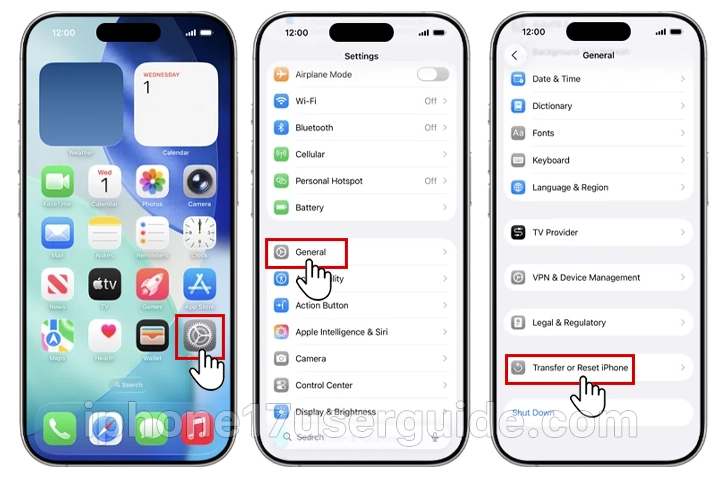
- Open the Settings app on your iPhone 17.
- Scroll down and tap General.
- Scroll to the bottom and select Transfer or Reset iPhone.
- Tap Reset.
- Choose Reset All Settings from the list.
- Enter your device passcode when prompted.
- Confirm your choice by tapping Reset All Settings again.
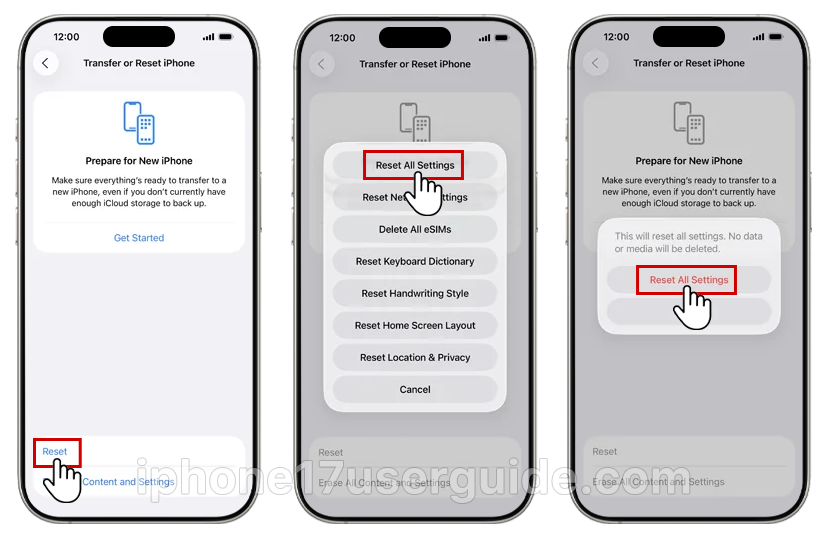
Your iPhone 17 will restart and begin resetting the system settings. This may take a few minutes.
What Happens After Reset?
After resetting all settings, your iPhone 17 will restart with default system configurations. You will need to reconnect to Wi-Fi networks and re-pair Bluetooth devices.
Other personalized adjustments, such as wallpaper or display preferences, will revert to defaults. However, your apps and files remain as they were.
Troubleshooting Common Issues Post-Reset
If you experience any issues after resetting, try these tips:
- Reboot your device again to stabilize settings.
- Manually reconfigure Wi-Fi, Bluetooth, and VPN connections.
- Check for iOS updates in Settings > General > Software Update.
Reset network settings separately if connectivity issues persist.
When to Use Other Reset Options on iPhone 17
Besides “Reset All Settings,” your iPhone 17 offers other reset options:
- Reset Network Settings: Clears only Wi-Fi, cellular, and VPN settings.
- Reset Keyboard Dictionary: Deletes learned words and auto-corrections.
- Reset Home Screen Layout: Restores app layout to factory default.
- Erase All Content and Settings: Full factory reset deleting all data and media. Use with caution only for major troubleshooting or before selling your device.
Understanding these choices ensures you pick the correct reset option based on your needs.
Tips for Maintaining Your iPhone 17’s Optimal Performance
Regularly updating your iPhone 17 to the latest iOS version and occasionally resetting settings can help your device run smoothly.
Keep your apps updated and avoid installing untrusted software to maintain system integrity.
Resetting all settings on iPhone 17 is a vital troubleshooting tool that restores default configurations without erasing personal content. Following this detailed guide ensures you perform the reset professionally and safely.
2 thoughts on “How to Reset All Settings your iPhone 17: Quick Fix Guide”