Frustrated because your shiny new iPhone 17 won’t connect to WiFi, even when other devices work fine? You’re not alone; many iPhone 17 series users (including Pro and Pro Max models) report this issue right after setup or iOS updates. This guide walks you through 12 proven fixes in order of ease, so you can skip the Apple Store visit and get streaming again quickly.

Step-by-step Guide to Fix iPhone 17 WiFi problems
Wi-Fi issues can be resolved pretty quickly with a few simple steps. Here’s your friendly guide to getting your iPhone 17 back online in no time!
Quick Checks Before Diving In
Start with these basics; they fix 70% of “iPhone 17 won’t connect to WiFi” problems without any tech skills needed.
- Verify your WiFi network: Ensure the router lights are on and other devices connect. Restart your modem by unplugging it for 30 seconds.
- Check signal strength: Move closer to the router; weak signals often fail on iPhone 17’s advanced WiFi 7 chip.
- Airplane Mode toggle: Swipe down from the top-right corner (Control Center), and tap the airplane icon to turn it on for 10 seconds, then off. This resets wireless radios instantly.
If these don’t work, proceed to targeted fixes.
Fix 1: Forget and Rejoin the WiFi Network
iPhone 17 sometimes caches bad network data, causing endless “Unable to Join” errors.
Go to Settings > WiFi, tap the info (i) icon next to your network, select Forget This Network, then reselect it from the list and enter the password. This clears corrupted profiles and works for most users post-iOS 26 update.

Pro Tip: If it’s a hidden network, manually add it via Other… and input the SSID/password.
Fix 2: Restart Your iPhone 17
A classic reboot clears temporary glitches in iOS 26’s networking stack.
- Press and hold the side button and volume down until the power slider appears.
- Slide to power off, wait 30 seconds, then press the side button to restart.
Many Reddit users fixed their iPhone 17 WiFi this way after unboxing.
Fix 3: Update iOS and Carrier Settings
Outdated software is a top reason iPhone 17 won’t connect to WiFi, especially with WiFi 7 bugs in early iOS 26 builds.
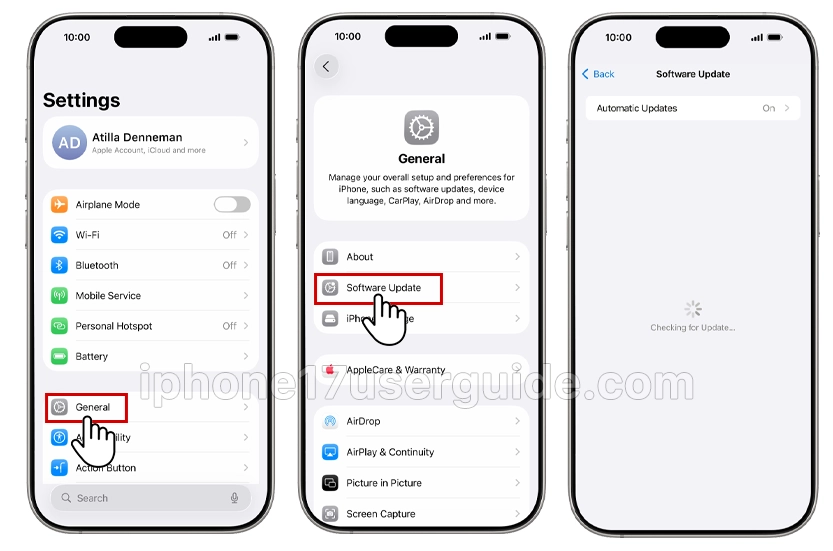
Check Settings > General > Software Update for iOS patches. Then go to Settings > General > About. If a carrier update prompt appears, install it. Apple released fixes for iPhone 17 connectivity in late 2025 updates.
Fix 4: Reset Network Settings
This erases WiFi passwords and VPNs but fixes deep configuration issues without data loss.
Navigate to Settings > General > Transfer or Reset iPhone > Reset > Reset Network Settings.

Enter your passcode, restart, and rejoin networks. Many user’s recommends this for persistent iPhone 17 WiFi drops.
Warning: You’ll need to re-enter saved passwords.
Fix 5: Check for VPN or Proxy Interference
VPN apps or proxies block WiFi on iPhone 17’s secure enclave.
Go to Settings > VPN (or General > VPN & Device Management) and disable any active profiles.
In Settings > WiFi > [network] > Configure Proxy, set to Off.
Disable third-party security apps temporarily too.
Fix 6: Enable Private WiFi Address (or Disable It)
iPhone 17 randomizes MAC addresses for privacy, confusing some routers.
Tap Settings > WiFi > [network] > Private WiFi Address and toggle it off. Reconnect. Flip side: Enable it if privacy matters more.
Fix 7: Adjust DNS Settings
ISP DNS servers fail on iPhone 17; switch to reliable ones like Google.
Settings > WiFi > [network] > Configure DNS > Manual > Add Server: 8.8.8.8 (primary), 8.8.4.4 (secondary). Save and reconnect.
Fix 8: Router-Specific Tweaks for iPhone 17
Modern routers clash with iPhone 17’s WiFi 7 (802.11be).
- Log into your router (usually 192.168.1.1) and separate the 2.4 GHz/5 GHz/6 GHz bands—iPhone 17 prefers 6 GHz.
- Disable “Smart Connect” or band steering.
- Update router firmware via its app (e.g., Eero, Google Nest).
Apple forums note this fixes Pro Max models.
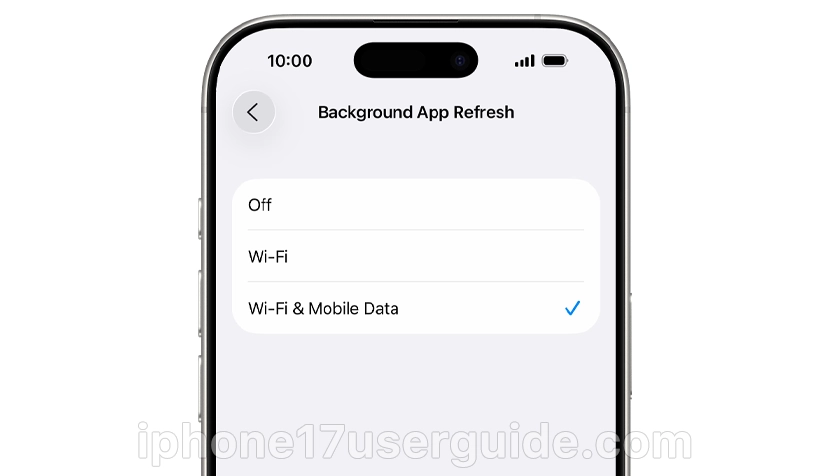
Fix 9: Low Power and Background App Refresh
Battery saver modes throttle WiFi on iPhone 17.
- Settings > Battery > Low Power Mode off.
- Settings > General > Background App Refresh set to WiFi.
Fix 10: Check for Hardware Issues
Rare, but the iPhone 17 Air/Pro had WiFi antenna reports early on.
Run diagnostics via the Apple Support app or dial ##4636## in the Phone app (if supported). If failures persist, visit an Apple Store; the warranty covers it.
Fix 11: Safe Mode Boot (Third-Party Interference)
Boot without extensions: Press volume up, press volume down, and hold the side button until recovery, but for safe mode, use Settings > General > Shut Down, then restart while holding Volume down.
Test WiFi. If it works, delete recent apps.
Fix 12: Advanced Tools and Factory Reset (Last Resort)
Use free tools to repair iOS without data loss. Connect iPhone 17 to PC/Mac, and select “Standard Repair.”
If all fails: Settings > General > Transfer or Reset iPhone > Erase All Content and Settings. Back up first via iCloud.
Why iPhone 17 WiFi Issues Happen More Often
iPhone 17’s WiFi 7 chip pushes faster speeds but bugs out on crowded networks or iOS 26 betas. User reports spiked post-launch, but 90% resolved via software tweaks.
Conclusion
Your iPhone 17 won’t connect to WiFi anymore; start with quick toggles and escalate to resets for reliable results. Most fixes take under 5 minutes and keep your data safe. Bookmark this for future glitches, and share if it helped a friend!
1 thought on “iPhone 17 Won’t Connect to WiFi? Here’s 12 Proven Fixes to Get You Back Online Fast”