Many iPhone 17 users face frustrating “no internet connection” issues affecting Wi-Fi and cellular data. These problems, reported across models including the iPhone 17 Pro Max, often stem from software glitches, network settings, or hardware conflicts, especially post-iOS 26 updates. This guide provides professional, step-by-step to fix iPhone 17 no internet connection issue.

Common causes of iPhone 17 internet connection error
On the iPhone 17, no internet connection issues frequently arise from temporary software bugs, misconfigured settings, or carrier-specific problems.
User reports highlight Wi-Fi dropping after unlocking, “connected but no internet” errors, and weak cellular signals even in strong coverage areas.
Cellular connectivity plagues nearly half of users, with dropped calls and unsent texts across AT&T, Verizon, and T-Mobile—issues Apple acknowledges and is addressing via software updates.
Wi-Fi problems often link to VPN interference, outdated router firmware, or iOS 26 betas resolving glitches like 6 GHz band conflicts.
Factors include:
- Software: Outdated iOS or beta versions causing network instability.
- Network: Router distance, hidden SSIDs, or MAC filtering blocking connections.
- Hardware/Apps: VPN profiles, security software, or even specific apps like Google One disrupting signals.
How to fix iPhone 17 no internet connection issue
Follow these step-by-step troubleshooting methods to resolve no internet connection issues on your iPhone 17, starting with the simplest fixes.
Basic fixes: Quick steps to restore internet
Start with these non-disruptive steps before advanced troubleshooting. They resolve most iPhone 17 no internet connection cases in under 5 minutes.
Toggle Airplane Mode and Wi-Fi
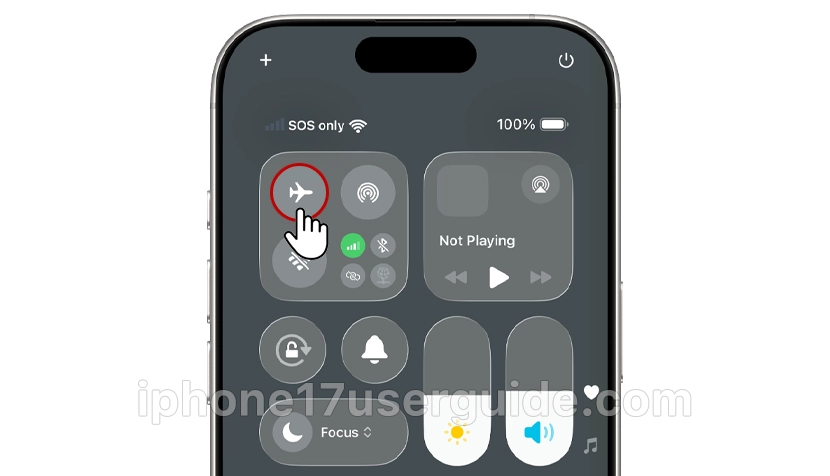
Swipe down from the top-right corner to open Control Center. Tap the Airplane icon to enable it, wait 15-30 seconds, then disable it. Next, toggle Wi-Fi off and on. This refreshes all radios without data loss.
Restart iPhone 17 and Router
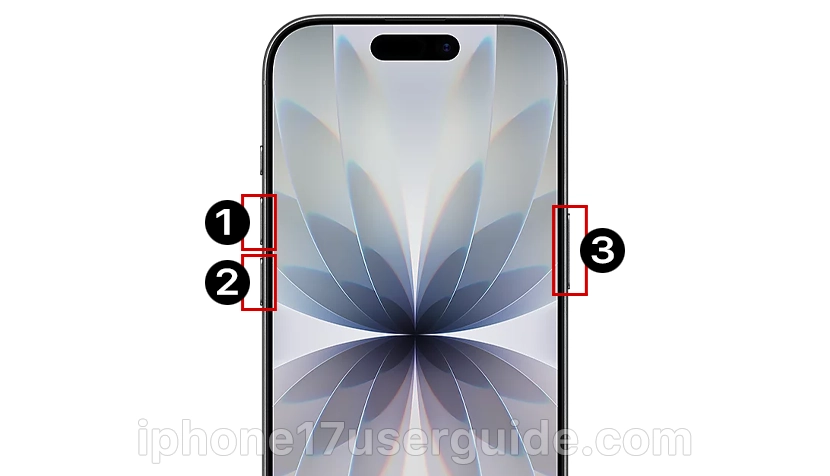
Press and release Volume Up, then Volume Down, and hold the Side button until the Apple logo appears. Unplug your router/modem for 30 seconds, then restart. Test the connection afterward—effective for 70% of Wi-Fi drops.
Check for iOS Updates
Go to Settings > General > Software Update. Install any available iOS 26 patches, as they fix known connectivity bugs in the iPhone 17 series.
Advanced Wi-Fi troubleshooting for iPhone 17
When basic steps fail, target Wi-Fi-specific issues common in iPhone 17 no internet connection scenarios.
Forget and Rejoin Network

Navigate to Settings > Wi-Fi, tap the (i) next to your network, select Forget This Network, then reconnect with the password. Clears corrupted cache—highly recommended for post-unlock drops.
Disable or Delete VPN Profile and Disable Low Data Mode

In Settings > VPN, toggle off any connections and delete profiles under General > VPN & Device Management. Then, Settings > Wi-Fi > (i) > Low Data Mode off. VPNs cause “no internet” even when disabled.
Cellular data fixes for iPhone 17 series
iPhone 17 Pro models report severe cellular woes, including no signal despite redesign improvements. For “No Service” or SOS Only mode despite signal bars, carrier-side checks are key.
- Verify Cellular Data is on in Settings > Cellular; toggle Low Data Mode off under Cellular Data Options.
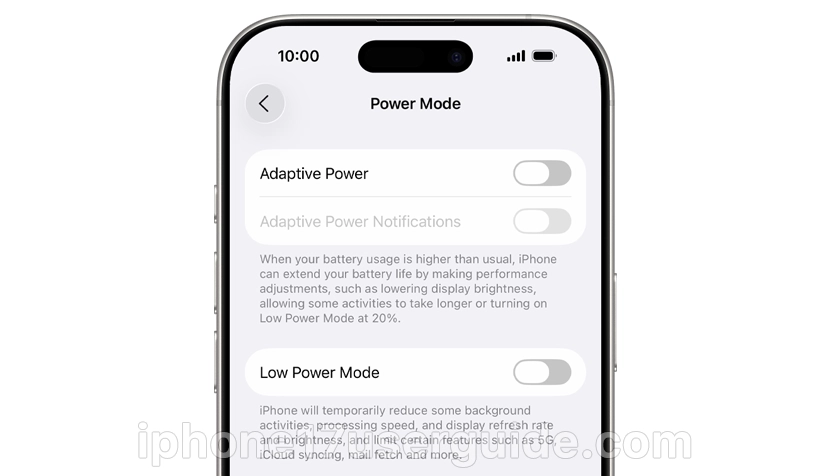
- Check for carrier updates: Settings > General > About—install if prompted, as they fix eSIM bugs on iPhone 17.

- For Dual SIM/eSIM, tap each line in Settings > Cellular to ensure it’s active; eject/reinsert the physical SIM or contact the carrier for eSIM refresh.
- Enable Data Roaming if traveling: Settings > Cellular > Cellular Data Options > Data Roaming.
Contact your carrier to confirm account status, no outages, and IMEI registration if bought abroad.
When to contact Apple or carrier support
If issues persist:
- Test on another network/device to isolate.
- Visit the Apple Store for diagnostics—hardware faults are rare but possible.
- Carrier: Verify outages and tower updates for iPhone 17 compatibility.
Apple’s awareness of cellular bugs promises fixes; monitor Software Update.
Prevention tips for reliable iPhone 17 connectivity
Maintain stability:
- Enable auto-join trusted networks.
- Update router firmware regularly.
- Avoid beta iOS unless necessary.
- Use cases with minimal metal interference.
Monitor via Settings > Cellular usage stats.
iPhone 17 no internet connection disrupts daily use, but these professional steps from toggles to resets resolve most Wi-Fi and cellular issues efficiently. Prioritize software updates and network resets for topical authority in iPhone 17 troubleshooting. Implement today for uninterrupted connectivity.
4 thoughts on “How to Fix iPhone 17 No Internet Connection: Complete Guide”