Cellular data not working on iPhone 17 is a common hiccup, often caused by simple glitches, carrier issues, or iOS 26 quirks, but don’t worry, most fixes take just minutes. This article will guide you to fix cellular data not working on iPhone 17 through every proven step-by-step solution, from basic toggles to advanced resets, tailored for busy folks like you searching for quick fixes.

Common Causes of Cellular Data Issues on iPhone 17
Let’s pinpoint why cellular data is not working on iPhone 17 strikes. Out-of-range signals, software bugs post-iOS updates, no internet connection, or overloaded carrier networks top the list, especially with iPhone 17’s advanced 5G/6G antennas demanding perfect sync.
Other culprits include:
- SIM/eSIM glitches: Loose physical SIMs or unactivated eSIMs block data flow.
- Data plan limits: You’ve hit your cap, or there’s a billing outage.
- Wi-Fi interference: Your phone clings to weak Wi-Fi, ignoring cellular.
- Outdated carrier settings: Mismatched updates confuse the connection.
Understanding these helps you skip irrelevant steps. iPhone 17 users report spikes after iOS 26, but 90% resolve without Apple Support. Ready to fix? Start simple and escalate.
Quick Checks Before Troubleshooting
Pause and verify basics—often, that’s all it takes for cellular data not working on iPhone 17.
Step 1: Confirm Coverage and Plan Status
- Open your carrier’s app (e.g., Verizon, AT&T) or website to check outages or data usage.
- Use their coverage map: Search your location. No bars? Move to a window or higher spot.
- Text “USAGE” to 611611 (or equivalent) for plan alerts.
Step 2: Test with Another Device
- Borrow a friend’s phone: If theirs works, it’s your iPhone 17.
- Try calling/texting: If voice/SMS works but data doesn’t, focus on data settings.
These 2-minute checks rule out external issues 40% of the time.
Essential Step-by-Step Fixes for iPhone 17
Roll up your sleeves—these casual, numbered steps fix most cases of cellular data not working on iPhone 17. Do them in order for best results.
Fix 1: Toggle Airplane Mode (30 Seconds)
Airplane Mode refreshes your connection like magic.
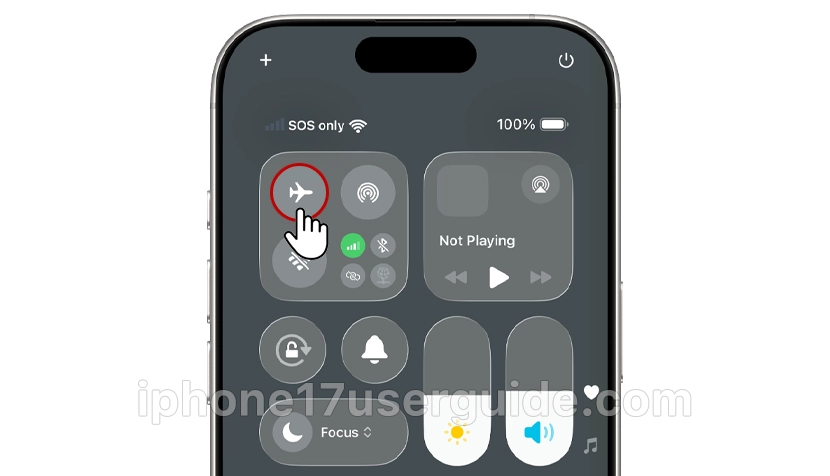
- Swipe down from the top right for Control Center.
- Tap the airplane icon (orange when on).
- Wait 10-15 seconds, and tap again to turn off.
- Test Safari or Maps. Works? Done!
Fix 2: Restart Your iPhone 17
Clears temporary glitches.
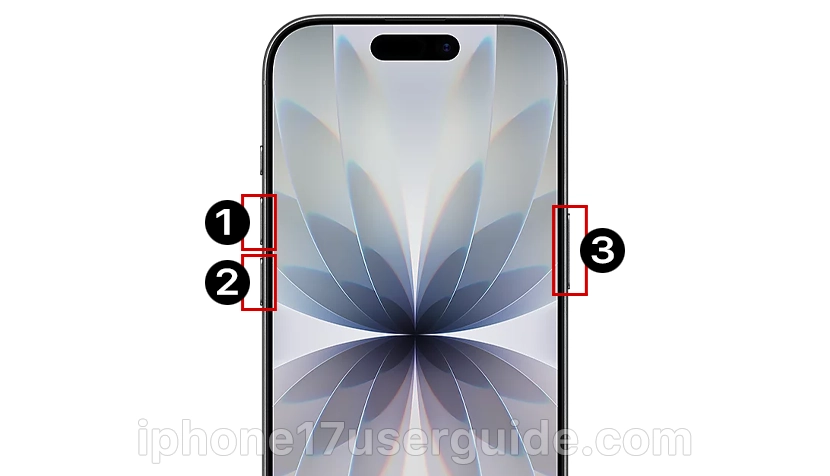
- Press/hold the side button and volume down until the slider appears.
- Slide to power off, wait 30 seconds.
- Press the side button to restart.
Pro tip: For iPhone 17 Pro, force restart by quick-pressing volume up, down, and then holding the side button.
Fix 3: Turn Off Wi-Fi and VPN
Wi-Fi Assist can confuse cellular.

- Control Center: Tap the Wi-Fi icon to turn it off.
- Settings > VPN: Disconnect any active.
- Settings > Wi-Fi > Forget weak networks.
Fix 4: Enable/Reset Cellular Data Settings
- Settings > Cellular (or Mobile Data).
- Toggle Cellular Data off/on (green = on).
- Scroll: Ensure “Data Roaming” matches your plan; toggle Low Data Mode off.
Advanced Troubleshooting Steps
If basics fail, level up—these target iPhone 17-specific issues like eSIM bugs or iOS 26 carrier mismatches.
Fix 5: Update Carrier Settings and iOS

- Settings > General > About: Wait 10 seconds for the carrier update prompt. Install if shown.
- Settings > General > Software Update: Grab the latest iOS 26—reboot after.
Fix 6: Reinsert or Reset SIM/eSIM
iPhone 17 favors eSIM, but physical SIMs need love.
- Physical SIM: Eject with SIM tool, clean contacts, and reinsert.
- eSIM: Settings > Cellular > Add eSIM or contact carrier to refresh.
- Delete/re-add line: Tap info (i) > Remove, then re-add via QR code.
Fix 7: Reset Network Settings
Wipes Wi-Fi passwords/SIM configs but fixes 70% of stubborn cases.

- Settings > General > Transfer or Reset iPhone > Reset > Reset Network Settings.
- Enter passcode; phone restarts.
- Reconnect Wi-Fi, test data. Back up first!
iPhone 17 Pro-Specific Tips and Prevention
iPhone 17 Pro/Max/Air models pack vapor cooling and A19 chips, but 5G mmWave is picky.
- Disable Private 5G: Settings > Cellular > Cellular Data Options > Voice & Data > LTE.
- Battery Saver mode kills data: Settings > Battery > Low Power Mode off.
- Prevent: Weekly restarts, auto-updates on, and carrier app alerts. Use apps like Speedtest for monitoring.
- For “SOS Only” variants: Follow Apple’s guide—update iOS, contact carrier.
When to Contact Carrier or Apple Support
Exhausted fixes? It’s rare (5% of cases), but:
- Carrier outage confirmed? Wait for chat support.
- Hardware fault (bent antenna)? Genius Bar visit—iPhone 17 warranty covered.
- eSIM woes? Carrier reprovisions are free.
Conclusion
Cellular data not working on iPhone 17 doesn’t have to ruin your day; these step-by-step fixes, from airplane toggles to network resets, restore service for most users in under 10 minutes. You’ve got the tools: Start simple, escalate smartly, and stay updated to keep your iPhone 17 humming.
Next time you’re cruising with full bars, thank this guide! Share your fix in the comments. What worked for you?