The iPhone 17 brings advanced AI capabilities to your fingertips, especially with its seamless integration of Chat GPT. Enabling ChatGPT on your iPhone 17 elevates how you interact with your device, from smarter Siri responses to enhanced writing, visual intelligence, and more. This guide will walk you through straightforward steps to enable ChatGPT on your iPhone 17 so you can make the most of this AI-powered assistant.
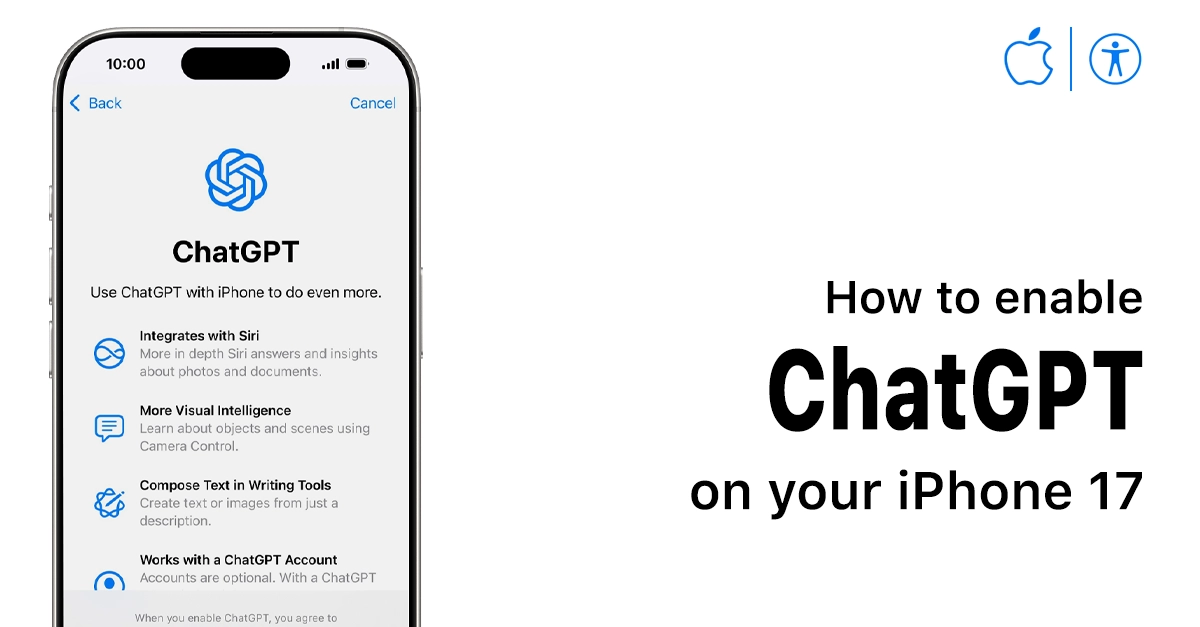
What is ChatGPT on iPhone 17?
ChatGPT on iPhone 17 is integrated with Apple Intelligence, allowing your iPhone to use the advanced AI chatbot for answering complex questions, generating content, and assisting with daily tasks through Siri and other built-in features.
The integration leverages OpenAI’s GPT-5 capabilities, delivering smarter, more personalized responses that enhance your user experience.
Step-by-Step Guide to Enable ChatGPT on iPhone 17
- Open Settings: Unlock your iPhone 17 and open the Settings app.
- Navigate to Apple Intelligence & Siri: Scroll down and tap on ‘Apple Intelligence & Siri.’
- Access Extensions: Within this menu, find the ‘Extensions‘ section.
- Select ChatGPT: Tap on ‘ChatGPT’ listed under Extensions.
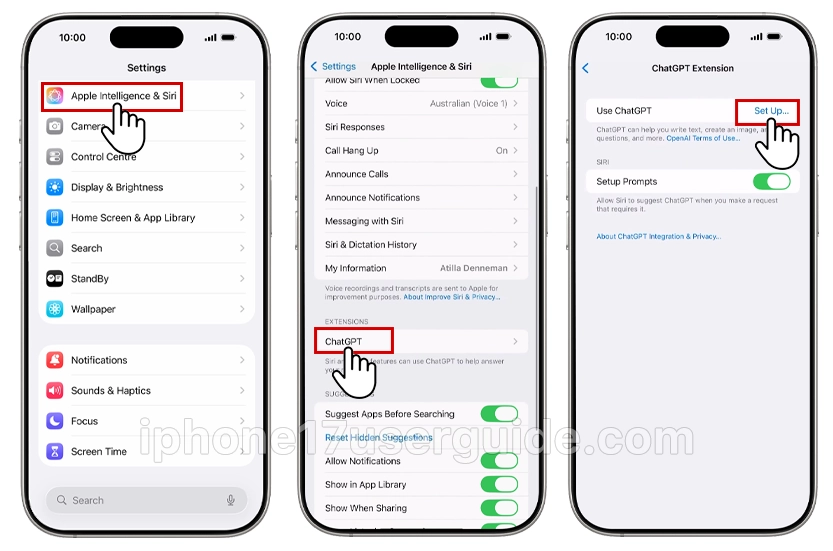
- Set Up ChatGPT: Tap ‘Set Up’ to begin. You have two options here:
- Enable ChatGPT without an account: Simply toggle on to start using ChatGPT immediately without signing in.
- Use with a ChatGPT account: If you want to save chat history and get personalized responses, sign in with your OpenAI ChatGPT account credentials.
- Connect your ChatGPT account: You don’t need a ChatGPT account, but if you have one—free or paid—you can connect to your account. With a ChatGPT paid account, your iPhone can use advanced ChatGPT capabilities more often.
- Enable Completion: After setup, tap ‘Enable Chat GPT’ to activate the feature on your device. Don’t forget to tap download ChatGPT icon on your device.

Once enabled, you can start interacting with ChatGPT through Siri by prefacing commands or questions with “ChatGPT.” Additionally, ChatGPT extends its capabilities to the iPhone’s camera for visual intelligence and writing tools, enhancing creativity and productivity.
How to Use ChatGPT with Siri on iPhone 17
The integration with Siri lets you use voice commands to access ChatGPT efficiently:
- Summon Siri and say commands starting with “Chat GPT,” such as “Chat GPT, write me a summary of today’s news.”
- Siri routes these requests to Chat GPT and delivers detailed, conversational responses.
- If Siri can’t answer a complex prompt, it automatically leverages ChatGPT’s broader AI capabilities.
This voice integration means you get a smarter assistant without needing to open separate apps, enhancing convenience.
Advanced Features Enabled by ChatGPT on iPhone 17
- Visual Intelligence: Point your iPhone camera at objects and ask ChatGPT questions about them for detailed explanations.
- Writing Assistant: Use Chat GPT to help draft emails, notes, or creative writing seamlessly with suggestions and rewrites.
- Image Generation: Generate AI images using ChatGPT prompts within Apple’s Playground app.
- Personal Context Awareness: ChatGPT integrates with your Mail, Calendar, and Notes apps for contextual assistance that fits your routine.
Troubleshooting and Tips
- If ChatGPT doesn’t appear in Extensions, ensure your iPhone 17 is updated to the latest iOS version supporting ChatGPT (iOS 18.2 or later).
- Restart your phone after enabling ChatGPT for smooth activation.
- To disconnect or disable, return to the extensions menu and toggle off Chat GPT.
- For enhanced privacy, Apple processes most ChatGPT requests on-device with secure cloud backups as needed.
Conclusion
Enabling ChatGPT on your iPhone 17 unleashes a new level of interaction powered by advanced AI. From smarter Siri responses and visual intelligence to writing assistance, ChatGPT brings unmatched convenience and creativity to your device. Follow the step-by-step setup, and start exploring the powerful features integrated seamlessly into Apple’s ecosystem. Stay ahead with your iPhone 17 and ChatGPT, two technologies that make life smarter and easier.
1 thought on “How to Enable ChatGPT on iPhone 17: A Complete Guide for Owners”