By default, your iPhone 17 opens web links in Safari, but many users prefer alternatives like Chrome, Firefox, or other browsers. With the latest iOS Default Apps settings, you can easily change the default browser on your iPhone 17 to open links across apps, so your experience stays consistent with the tools you like most.
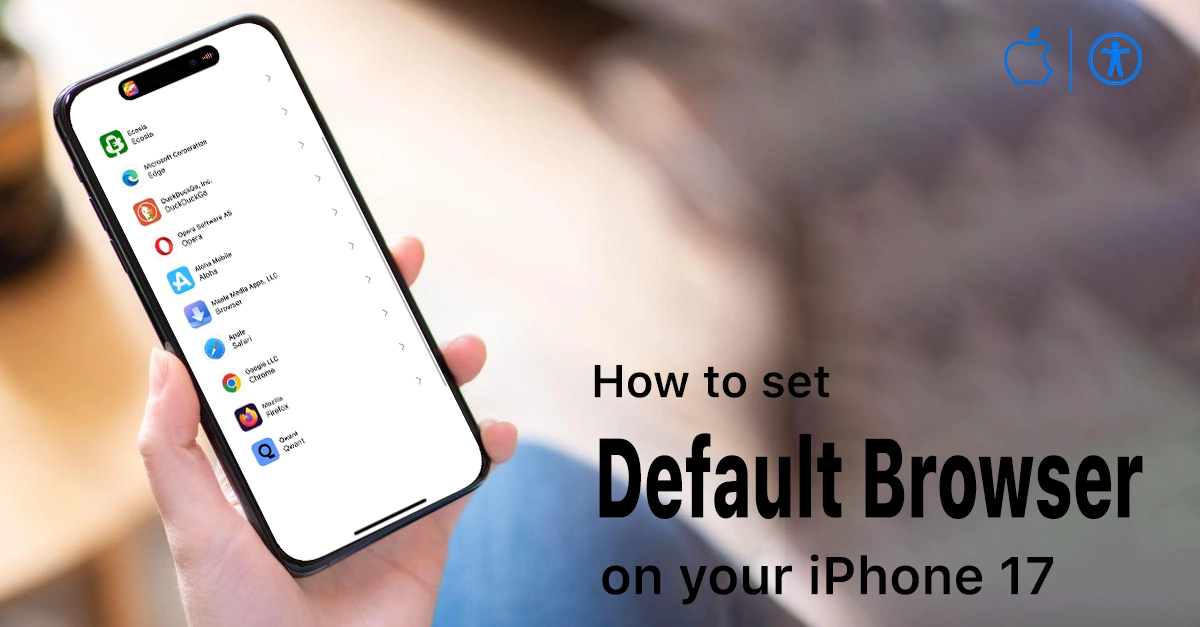
This professional step-by-step guide shows iPhone 17 owners exactly how to switch the default browser, what requirements apply, and which limitations to keep in mind. You will also see how this works in different regions and what to do if a browser does not appear as an option.
Requirements before changing the default browser
Before you try to switch the default browser, there are a few conditions your iPhone 17 must meet. Meeting these first avoids confusion when the new browser does not show up in the settings.
- Your iPhone 17 must be updated to the latest version of iOS, because Default Apps settings only appear on recent software.
- The browser you want to set as default must be installed and support being a default browser app on iOS.
Steps to change the default browser on iPhone 17 running iOS 26
Apple simplified this in iOS 26, standard on the iPhone 17 released in September 2025. Follow these quick steps to set your default.
Step 1: Install your preferred browser from the App Store
The browser app must be on your device and coded to support default status. Popular choices like Google Chrome and Mozilla Firefox provide this capability on iOS.
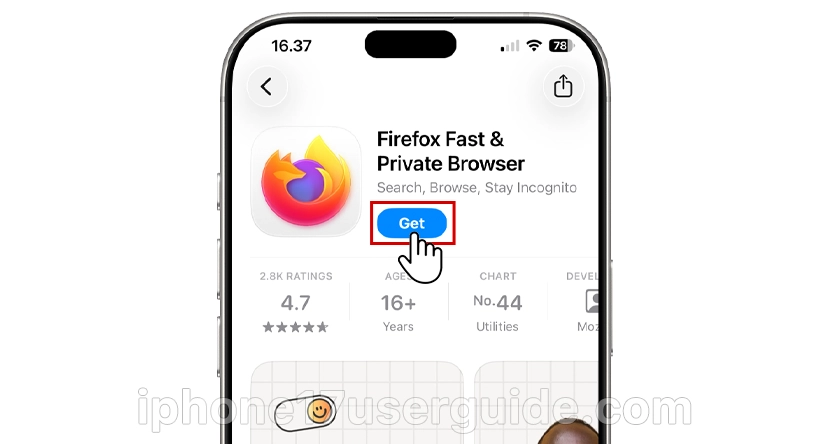
- Open the App Store and search for the browser you want, such as “Google Chrome” or “Firefox.”
- Tap Get to install the browser, then open it once so it completes initial setup.
Step 2: Open default apps settings on iPhone 17
Apple now provides a central place to select default apps for web, email, and other features. On iPhone 17, this lives under a dedicated “Apps” section in Settings.
- Open Settings and scroll until you see Apps, then tap it.
- At the top of the Apps list, tap Default Apps to see all features that support custom defaults.
Step 3: Change the befault browser app
Once inside Default Apps, you can choose the browser used when opening webpage links. This setting affects links you tap in Mail, Messages, third-party apps, and more.
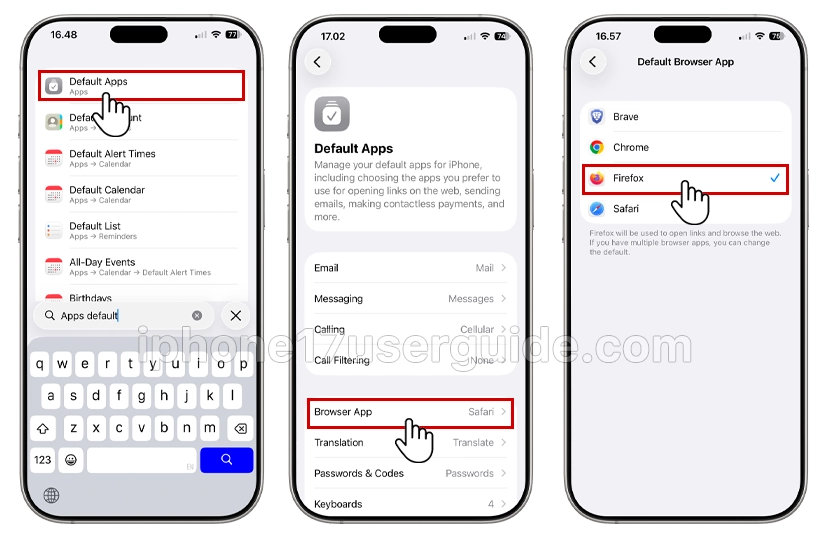
- In the Default Apps screen, tap Browser App from the list of features.
- You will see Safari plus any installed browsers that support being set as default; tap your preferred browser to select it.
Step 4: Confirm and complete any onscreen steps
Some apps may show an extra prompt the first time they are set as default. Following these steps ensures the browser registers correctly with the system.
- After choosing the new browser, follow any onscreen instructions the app shows, such as confirming default status or accepting terms.
- Once done, your iPhone 17 will open most web links in the new browser automatically.
How to check that the new default browser works
It is useful to test a few links to ensure the default browser change is active. A simple check from apps you use daily is enough.
- Open an app like Mail or Messages, tap a web link, and see which browser launches.
- If it still opens Safari, revisit Settings > Apps > Default Apps > Browser App and confirm the correct browser is selected.
What if your browser does not appear as an option?
In some cases, you will not see your preferred app listed under Browser App, even if it is installed. This usually means the developer has not enabled it as a default-capable browser or you are on older software.
- First, update both iOS and the browser app itself to the latest versions and check the Default Apps list again.
- If the browser still does not appear under Browser App, Apple recommends contacting the app developer to confirm whether it supports default browser status on iOS.
Conclusion
Changing the default browser on iPhone 17 is straightforward once you know where Apple placed the new Default Apps settings. By updating iOS, installing a compatible browser, and selecting it under Apps > Default Apps > Browser App, you keep all your links opening in the browser that best fits your workflow.
If the browser you want does not appear, it is usually a sign of missing support or outdated software rather than a problem with your iPhone 17 itself. With these clear steps and checks, you can confidently control how web links behave on your device and deliver a consistent browsing experience for your readers looking for iPhone 17 tips.
1 thought on “How to Change Default Browser on iPhone 17 (Step-by-Step Guide)”