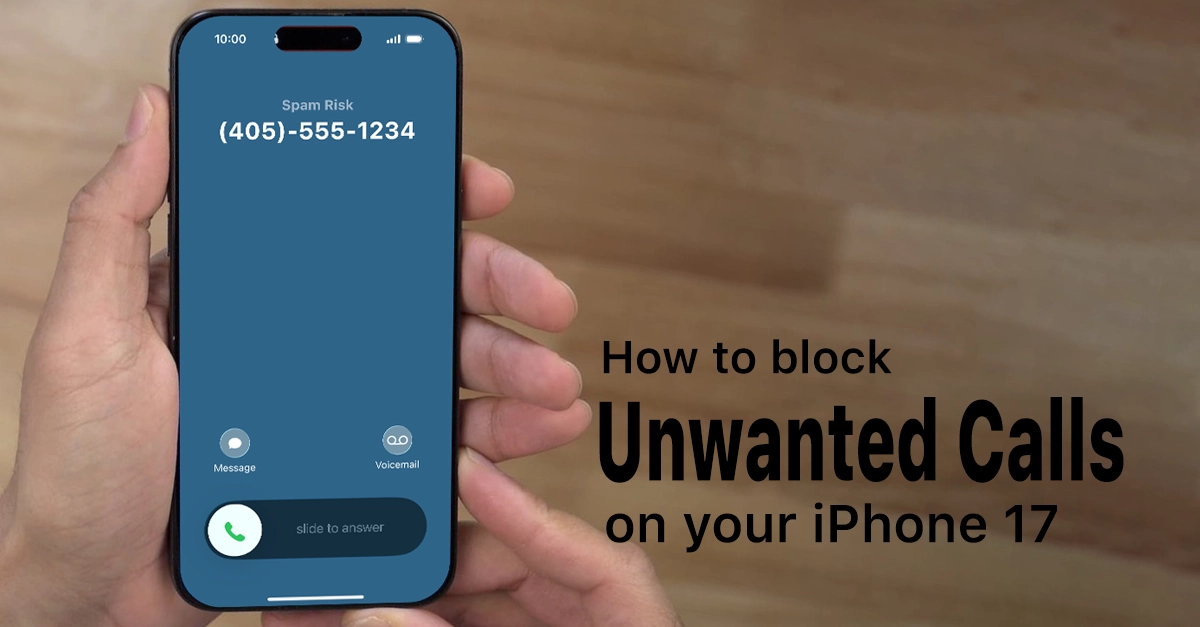
Unwanted calls, spam texts, and annoying FaceTime requests can be frustrating, but your iPhone 17 has powerful tools to block them in seconds. With iOS 26, you can block contacts from several apps and manage all blocked numbers in one place, so you stay in control without complicated settings. In this guide, you will learn every way to block contact on iPhone 17, how blocking actually works, and how to unblock or manage your blocked list when needed.
How blocking contacts works on iPhone 17
When you block a phone number, contact, or email on iPhone 17, the person can still call or message you, but your device quietly filters them out. Calls go straight to voicemail with no notification, and messages or FaceTime attempts are not delivered to your inbox or conversation view.
The blocked person does not receive any alert that you blocked them, so the change is invisible from their side.
Blocking also works across apps that use the same Apple ID, including Mail, so blocked email addresses are sent straight to the trash folder instead of your inbox. The same Blocked Contacts list is used across Phone, Messages, FaceTime, and Mail, which makes management easier on your iPhone 17.
How to Block a contact from the Phone app
The Phone app is the fastest way to block a number that recently called you on your iPhone 17. Use this when spam callers or unknown numbers keep showing up in your Recents list.
Follow these steps:
- Open the Phone app on your iPhone 17 and go to the Recents tab.
- Find the phone number or contact you want to block, then tap the info (i) button next to it.
- Scroll down on the contact or number screen and tap “Block Caller.”
- Confirm when prompted to add this number to your Blocked Contacts list.
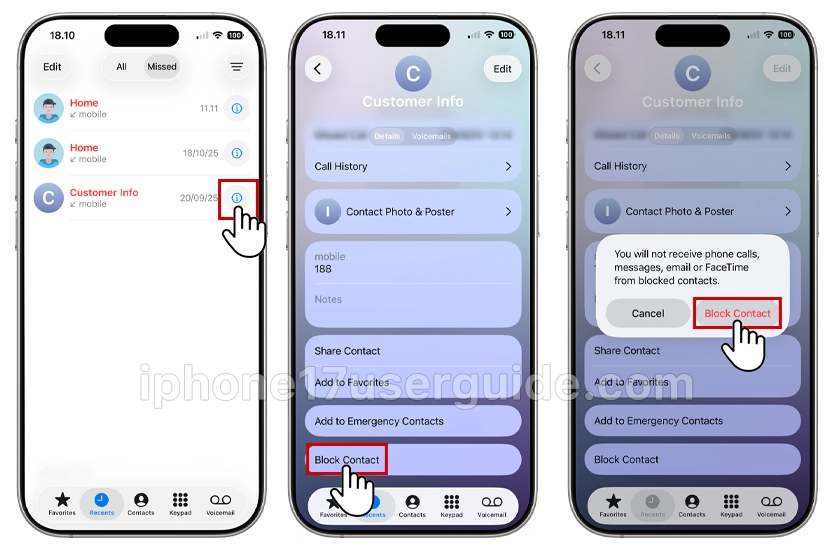
Once blocked, calls from this number will be silenced and routed to voicemail without notifications, and they will not ring through on your iPhone 17.
Block a contact from the Messages app
If someone keeps texting or iMessaging you, you can block them directly from the conversation in Messages on iPhone 17. This is useful for spam texts, unknown senders, or contacts who keep messaging after you ask them to stop.
Steps to block contact on iPhone 17 via Messages:
- Open the Messages app and tap the conversation with the number or contact you want to block.
- At the top of the conversation, tap the contact name, number, or profile icon.
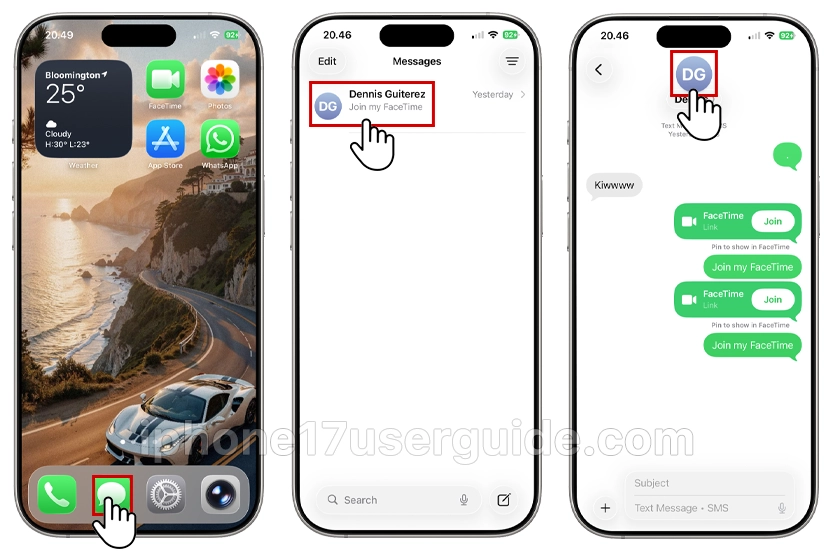
- In the contact sheet that appears, scroll down and tap “Block Caller.”
- Confirm to add this contact to your Blocked Contacts list.
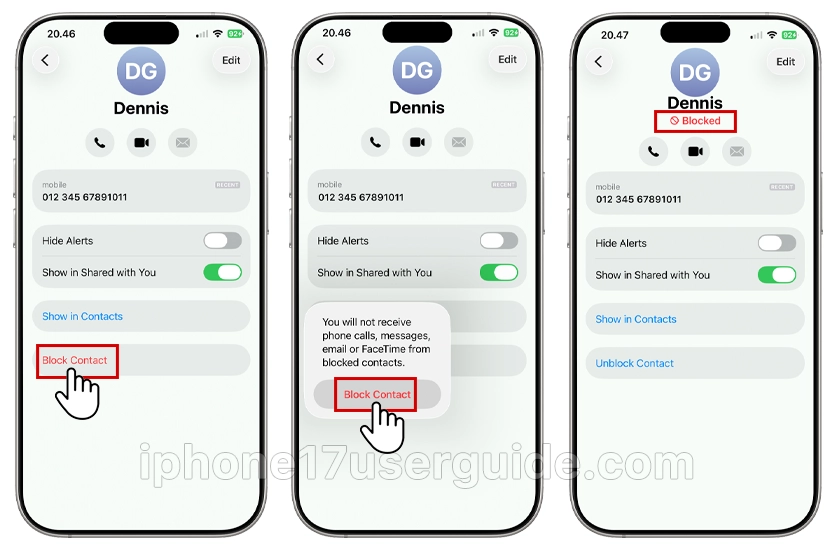
Future messages and iMessages from this number will no longer appear in your conversation list, and you will not get alerts from them.
Block a contact from the FaceTime app
Video and audio calls via FaceTime can be blocked just as easily as normal phone calls on your iPhone 17. This is handy when someone is spamming FaceTime call requests.
To block someone from FaceTime:
- Open the FaceTime app on your iPhone 17.
- Find the number, email, or contact in your recent FaceTime list and tap the info (i) button next to it.
- Scroll down and tap “Block Caller.”
- Confirm to add this contact to your Blocked Contacts.
Once blocked, FaceTime calls from that contact will no longer ring or appear as incoming calls on your iPhone 17.
Block email addresses in the Mail app
If you receive unwanted emails from a specific sender, you can block their address so messages are automatically moved to the trash. This applies across devices signed in with the same Apple ID, which helps keep your inbox cleaner everywhere.
To block an email contact on iPhone 17:
- Open the Mail app and open the email from the sender you want to block.
- At the top of the email, tap the sender’s name or email address to open their contact card.
- Tap “Block this Contact” on the contact card.
- Confirm to add this email address to your blocked list.
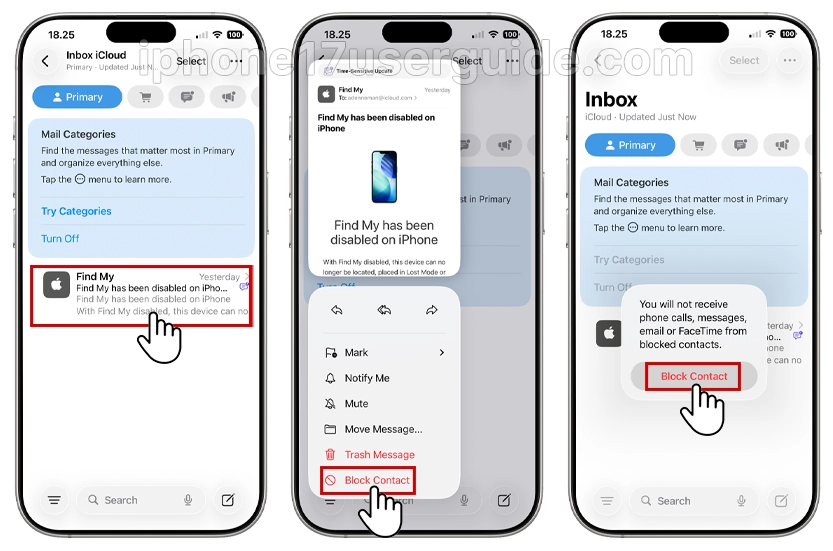
After blocking, new emails from that address will go directly to the trash folder rather than your main inbox on iPhone 17.
Use Settings to block contacts on iPhone 17 running iOS 26
For more control, you can add contacts directly to your Blocked Contacts list through Settings on your iPhone 17 running iOS 26. This is useful when someone is already in your Contacts and you want to block them without opening Phone or Messages.
Follow these steps:
- Open the Settings app on your iPhone 17.
- Tap “Privacy & Security.”
- Tap “Blocked Contacts.”
- Tap “Add Blocked Contact.”
- Choose the contact from your Contacts list that you want to block.
That contact will be added to the blocked list, and their calls, messages, and FaceTime requests will be blocked according to the system rules.
Manage and unblock contacts in Settings
If you change your mind later, you can easily remove someone from your blocked list so calls and messages come through again. Management happens in the same Blocked Contacts section under Privacy & Security in iOS 26.
To unblock a contact on iPhone 17:
- Open Settings and tap “Privacy & Security.”
- Tap “Blocked Contacts.”
- Tap “Edit” in the top-right corner.
- Tap the red delete icon next to the contact or number you want to unblock, then tap “Unblock.”
After unblocking, that contact’s calls and messages will behave normally again, and they will be able to reach you like any other person.
Filter unknown senders in Messages
Besides blocking single contacts, iPhone 17 can automatically filter messages from people who are not in your contacts into a separate list. This does not block them, but it keeps your main Messages list focused on people you know and helps reduce spam clutter.
To enable filtering of unknown senders:
- Open Settings on your iPhone 17 and tap “Messages.”
- Look for options like “Filter Unknown Senders” and turn the switch on.
- Once enabled, Messages will show a separate tab or section for unknown senders, so you can ignore them or block specific numbers as needed.
This is a great add-on to blocking contacts, especially if you get many random verification codes, promotions, or spam texts.
What happens after you block a contact on iPhone 17?
Understanding what changes after you block contact on iPhone 17 can help you avoid confusion. Many users worry about whether the other person knows or why they still see voicemails.
Here is what happens:
- Calls: Blocked callers can still call, but your iPhone sends them straight to voicemail without ringing or notifications.
- Messages and iMessages: Texts from blocked numbers are not delivered to your Messages inbox, and you do not receive alerts.
- FaceTime: FaceTime calls from blocked contacts do not appear as incoming calls on your screen.
- Emails: Blocked email addresses go directly to trash instead of your inbox across your Apple devices.
The blocked person does not get any notification that they have been blocked, so the process is discreet and private.
Tips for managing spam calls and texts
Beyond blocking single contacts, a few habits can help you keep your iPhone 17 cleaner and quieter. Combining these tools with the “block contact on iPhone 17” steps above gives you a solid spam control strategy.
Useful tips include:
- Avoid answering obvious spam or unknown numbers, and block them from Recents afterward.
- Use carrier spam filtering if your network provider offers call protection or spam labeling features.
- Regularly review your Blocked Contacts list to remove numbers you no longer need to block, keeping it organized.
These practices, combined with the built-in block tools, help reduce unwanted distractions on your iPhone 17.
Conclusion
Learning how to block contact on iPhone 17 gives you fast control over who can reach you by call, text, FaceTime, or email. Using the Phone, Messages, FaceTime, and Mail apps, plus the Blocked Contacts list in Settings and filters for unknown senders, you can quickly silence spam, harassment, or simple annoyances without changing your number.
With these simple, step-by-step methods, your iPhone 17 stays focused on the people and messages that matter most.
2 thoughts on “How to Block Contact on iPhone 17: Step-by-Step Guide to Stop Unwanted Calls and Messages”