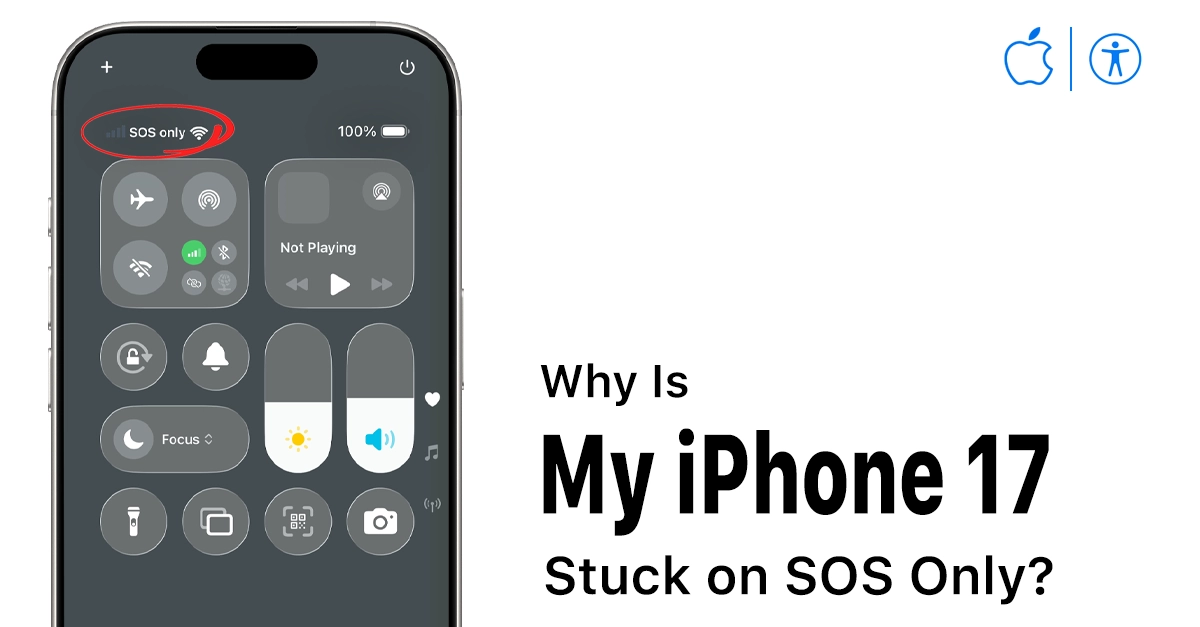
Seeing “SOS” or “SOS only” in the status bar on your iPhone 17 can be alarming, but it’s a built-in safety feature that kicks in when your phone loses regular cellular connection. This allows emergency calls via satellite or other networks while you troubleshoot. We’ll break down why it happens on the iPhone 17 and share simple fixes special for owners like you.
What Does SOS Mean on iPhone 17?
SOS mode activates automatically on iPhone 17 when it can’t connect to your carrier’s network for calls, texts, or data.
Instead of normal bars, you see “SOS” to signal limited service—great for true emergencies but frustrating otherwise.
On the 2025-released iPhone 17 with iOS 26, this ties into advanced satellite features for global coverage.
No regular service doesn’t mean your phone is broken; it’s designed this way for safety.
Common Reasons SOS Shows on iPhone 17
Several triggers cause SOS on iPhone 17, from simple glitches to external issues.
- Poor signal or dead zones: Basements, remote areas, or buildings block carrier waves.
- Carrier outages: Recent Verizon issues left many iPhones in SOS mode nationwide.
- Software glitches: iOS 26 bugs or network settings errors, common in new iPhone 17 reports.
- SIM/eSIM problems: Faulty SIM, no plan, or carrier mismatch.
- Airplane mode or toggles: Accidentally left on, or cellular data off.
Check DownDetector for outages first if you’re in a good signal spot.
Step-by-Step Fixes for SOS on iPhone 17
Try these friendly, easy steps in order—most users fix it in minutes without tech skills.
1. Toggle Airplane Mode
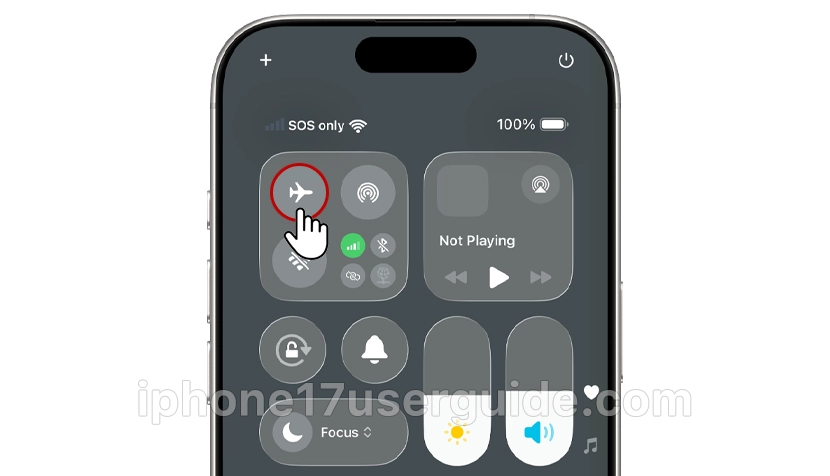
- Swipe down from the top right for Control Center.
- Tap the airplane icon to turn it on (orange), wait 10 seconds, and tap off. This resets connections fast.
2. Check and Toggle Cellular Data
- In Control Center, expand the cellular panel (green icon in iOS 26).
- Turn Cellular Data off, then on. Also verify you’re not on Wi-Fi only.
3. Restart Your iPhone 17
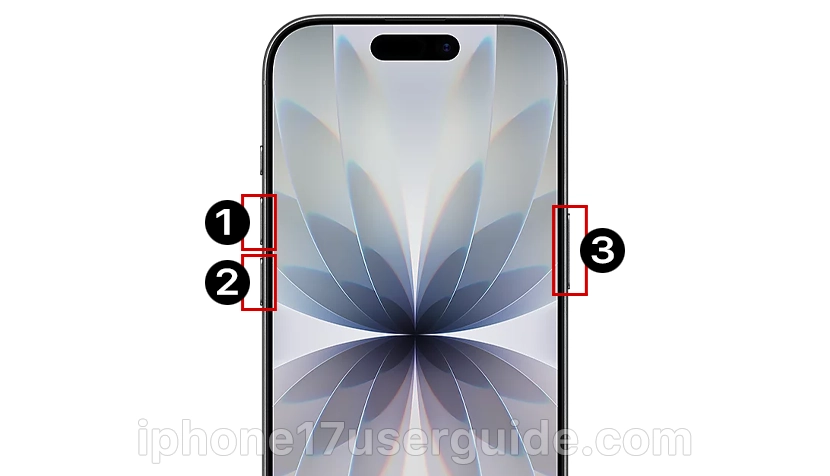
- Press the side button and volume down for 3 seconds until the slider appears.
- Slide to power off, wait 30 seconds, and turn back on. Clears temporary glitches.
4. Reset Network Settings

- Go to Settings > General > Transfer or Reset iPhone > Reset > Reset Network Settings.
- Enter passcode; this forgets Wi-Fi passwords but fixes deep network issues—no data loss.
5. Check SIM/eSIM and Carrier
- Eject the SIM (if physical) with the tool, clean it, and reinsert it.
- For eSIM: Settings > Cellular > Add eSIM or contact carrier. Update carrier settings if prompted.
6. Update iOS and Carrier Settings
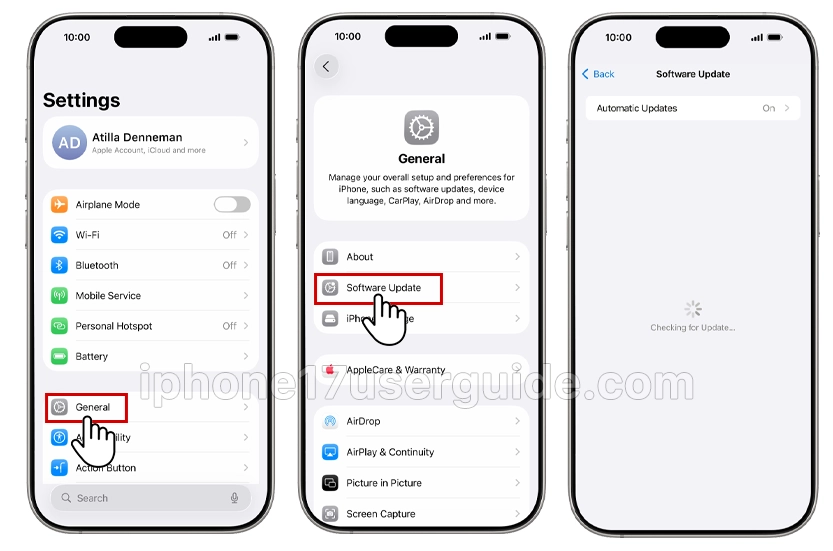
- Settings > General > Software Update for iOS 26 patches.
- Carrier updates pop up automatically—install them.
If issues persist, visit Apple Support or your carrier store.
| Fix | Time Needed | Success Rate (User Reports) |
|---|---|---|
| Airplane Mode Toggle | 15 seconds | High |
| Restart | 1 minute | Very High |
| Network Reset | 2 minutes | High |
| SIM Check | 5 minutes | Medium |
| iOS Update | 10+ minutes | High for bugs |
iPhone 17-Specific SOS Tips
iPhone 17’s satellite SOS shines in true emergencies—hold the side button and volume for 5 seconds to activate.
Recent outages like Verizon’s in January 2026 amplified reports, but fixes work the same.
Avoid if in SOS: Don’t force updates or factory reset without backup.
Test satellite: Settings > Emergency SOS > Try demo.
When to Seek Pro Help
If fixes fail after 24 hours, it could be a hardware (rare on the new iPhone 17) or account issue. Contact the carrier first, then the Apple Genius Bar, and use the GetSupport app.
Conclusion
SOS on your iPhone 17 usually means temporary no-service, triggered by signals, outages, or glitches. Start with toggles and restarts for quick wins. These steps restore normal bars safely, keeping you connected. Bookmark for future reference!
2 thoughts on “Why Does SOS Appear on My iPhone 17? Quick Fixes Explained”